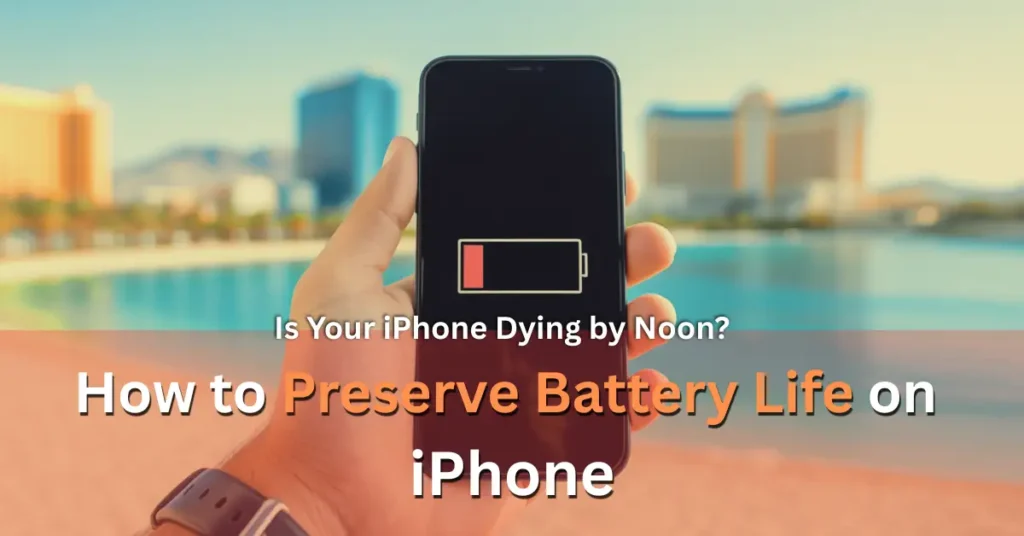
To preserve battery life on iPhone, start by immediately enabling Low Power Mode when needed and manually lowering your screen brightness, as the display is the biggest power drain. You must also manage background activity by turning off Background App Refresh for non-essential apps and auditing your Location Services to ensure apps aren’t tracking you needlessly. Furthermore, protecting your device from extreme temperatures, especially the intense Las Vegas heat, is crucial for maintaining long term battery health.
But Let’s Get You Through A Little Example
You are walking down the Las Vegas Strip. You have the perfect photo op in front of the Bellagio fountains. You lift your phone to capture the moment, and suddenly the screen goes black. Your iPhone’s battery is dead, again.
It is incredibly frustrating when your technology cannot keep up with your life. We hear this complaint every single day at Silver Wireless.
Customers come in asking the same question. Why is my iPhone battery draining so fast? Is it broken? Do I need a new one? Is Apple slowing it down on purpose?
But here is the truth. While batteries do degrade over time, nine times out of ten, the issue isn’t a broken phone.
It is the settings. Your iPhone is a powerhouse computer in your pocket, but it is also constantly thirsty for power.
Every notification, every GPS ping, and every bright pixel sips away at your charge. If you don’t manage these features, they will manage you. But don’t worry.
You do not have to live tethered to a wall outlet or carry around three portable chargers just to get through the day. We have compiled the ultimate guide loaded with practical tips on how to preserve iPhone battery life.
These aren’t just theoretical ideas. These are the exact steps our certified technicians use to help customers squeeze every last drop of power out of their devices.
We are going to show you exactly how to preserve battery life on iPhone starting right now.
The Immediate Fixes: Quick Ways to Stop the Bleeding of the Battery
To quickly stop your iPhone battery from draining so fast, the most effective steps are to turn on Low Power Mode, lower your screen brightness, and limit background activity.
When you are out and about and see the battery percentage turn red, you need immediate solutions. These are the emergency brakes you can pull to reduce power drain drastically.
Master the Low Power Mode
This is the single most effective tool Apple gives you. When your battery reaches 20 percent, your iPhone usually prompts you to turn on Low Power Mode. Always say yes.
But you don’t have to wait until 20 percent.
If you know it is going to be a long day, set it to 80 percent when you leave the house. Saving battery on an iPhone using this feature is simple.
- You can activate it manually by going to Settings> Battery and toggling Low Power Mode on. For faster access, add it to your Control Center so you can swipe down and tap the yellow battery icon instantly.
So what does it actually do?
Low Power Mode temporarily reduces background activity, such as downloads and mail fetch, until you can fully charge your iPhone. It buys you precious hours.
Tame Your Screen Brightness
Your screen is a giant flashlight that is always on. Lighting up that beautiful, high-resolution display takes an immense amount of energy.
It is often the number one battery killer on any smartphone. By default, your iPhone uses Auto Brightness. This feature adjusts the screen based on ambient light. It is generally helpful, but sometimes it is too aggressive, especially outdoors in the bright Nevada sun.
- To manually take control, open your Control Center and drag the brightness slider down as low as you can comfortably tolerate.
Even a 25 percent reduction can make a noticeable difference by the end of the day. Also, ensure your Auto Lock setting is set to 30 seconds. If you set your phone down and the screen stays on for five minutes, that is five minutes of pure waste.
Go to Settings > Display & Brightness > Auto Lock, then select the shortest duration.
Is Your Battery Draining Faster Than You Can Read This?
Sometimes settings aren’t enough. If your phone is shutting down randomly or won’t hold a charge for more than an hour, it might be time for a replacement.
Visit Silver Wireless in Las Vegas today for a free battery health diagnostic!
The Silent Killers of iPhone’s Battery: Background Activity You Don’t See
Now we need to look under the hood. A lot of your battery life is chewed up by things happening when your phone is in your pocket.
Apps are constantly waking up in the background to check for new content or figure out where you are. Knowing how to optimize iPhone battery means taking control of this hidden activity.
Stop Background App Refresh
This feature allows apps to refresh their content in the background when on Wi Fi or cellular in Las Vegas. It sounds convenient because when you open Instagram, the latest posts are already there. But do you really need your airline app checking for flights every ten minutes when you aren’t travelling? Probably not.
- To fix this, go to Settings General> Background App Refresh.
We recommend turning this off entirely to see the biggest gains. If that feels too extreme, you can leave it on but manually toggle off every single app that doesn’t absolutely need up-to-the-second updates.
Be ruthless here. Social media apps are notorious offenders in this category.
Audit Your Location Services
This is a big one. Using the GPS chip requires significant power. Many apps ask for your location data even when it is completely irrelevant to their function. Why does a calculator app need to know you are at a coffee shop in Summerlin?
It doesn’t. Here are crucial iPhone battery-saving tips for location.
- Go to Settings,>Privacy & Security>Location Services.
- Look through the list of apps. You will see settings like “Always,” “While Using,” or “Never.”
- Any app set to “Always” can track your location even when the app is closed. This is a massive battery drain.
- Change almost everything to “While Using the App” or “Never.”
- Only keep “Always” for critical navigation or safety apps that you genuinely rely on for background tracking.
How Heat Destroys Your iPhone Battery
Here is something most people forget. Environment matters. If you live here in Las Vegas, you face an extra challenge that people in cooler climates don’t.
Excessive heat can significantly degrade the lithium-ion batteries in iPhones.
Apple specifically states that exposing your device to ambient temperatures above 95° F can permanently reduce battery capacity. That means your battery won’t last as long on a single charge ever again.
Think about how hot the inside of your car gets in July.
Leaving your phone in the cup holder while you run into the store can raise its internal temperature well above that danger zone.
Learning how to improve iPhone battery health isn’t just about software settings. It is about physical care.
- Never leave your phone in direct sunlight by the pool.
- Don’t charge your phone if it feels excessively hot to the touch, as charging generates even more heat.
- Take the case off if you are doing intensive tasks like gaming while charging, so the heat can dissipate.
Protecting your phone from heat is the best long-term investment you can make in its longevity.
Did the Vegas Heat Already Cook Your Battery?
If your Maximum Capacity is below 80%, you are running on borrowed time. Don’t wait for it to fail completely. Call Silver Wireless now to schedule a quick, affordable battery replacement!
Long Term Strategy: Optimizing Settings for Daily Use
We have covered immediate fixes and environmental dangers.
Now let’s look at the “set it and forget it” adjustments that yield long-term rewards. These changes might seem small individually, but together they add up to significant power savings.
Manage How You Get Email
Do you get fifty emails a day that you don’t read until the evening? If so, your phone is wasting energy constantly pinging the server to deliver them the second they arrive. This is called a “Push” email.
Changing this setting to “Fetch” can save significant power. With Fetch, your iPhone checks for new mail only at set intervals, such as every hour or only when you manually open the Mail app.
- Go to Settings, Mail Accounts, Fetch New Data.
- Turn off Push at the top and set the fetch schedule to Hourly or Manually.
Using the Dark Mode
If you have an iPhone X or newer (excluding the XR and iPhone 11), your phone likely has an OLED screen. On these screens, black pixels are actually completely turned off. They use zero energy.
Therefore, using Dark Mode isn’t just an aesthetic choice. It is a power-saving tactic. The more black on your screen, the less power the display draws.
- Go to Settings > Display & Brightness, then select Dark.
You can also set it to turn on automatically at sunset.
Understanding Battery Health vs. Battery Life
Before we wrap up, it is vital to understand the difference between these two terms.
Battery Life is how long your phone runs before it needs to be recharged. Battery Health is the lifespan of the physical battery itself, over months and years.
All rechargeable batteries are consumable components that degrade over time. As lithium-ion batteries age, their ability to hold a charge diminishes.
- You can check yours by going to Settings > Battery> Battery Health & Charging.
Look at Maximum Capacity. A brand new phone is 100 percent.
If yours says 85 percent, it means that even when fully charged, your phone only holds 85 percent of the power it did on day one. Once this number drops below 80 percent, you will likely notice significant issues, such as sudden shutdowns or a sluggish phone.
At that point, software tips can only do so much.
Final Thoughts
Keeping your iPhone charged doesn’t have to be a daily struggle. By understanding which features use the most power and making a few strategic adjustments, you can get back to enjoying your phone instead of worrying about it.
Remember to watch out for that Las Vegas heat and keep an eye on your long-term battery health. And if you have tried everything and your phone still won’t last until dinner time, contact us at Silver Wireless.
We will get you powered back up in no time.
Frequently Asked Questions About iPhone Batteries
1. Does quitting apps in the multitasking view save battery life?
Ans- This is perhaps the biggest myth in smartphone history. No, it does not save battery life. In fact, it can actually worsen battery drain. When you force close an app, your iPhone has to reload it entirely from scratch the next time you open it, which uses more processor power and energy than simply waking it from a suspended state in the background. Only force-close an app if it is frozen or malfunctioning.
2. Is it harmful to charge my iPhone overnight every single night?
Ans- Generally speaking, no, it is not harmful thanks to modern software. Your iPhone has a feature called “Optimized Battery Charging.” Your iPhone learns from your daily charging routine, so it waits to finish charging past 80 percent until you need to use it. This prevents the battery from sitting at 100 percent for hours, which reduces chemical aging. Ensure this feature is turned on in your Battery Health settings.
3. Why does my battery drain so fast right after an iOS update?
Ans- This is very common and usually temporary. After a major update, your iPhone is working hard in the background to re-index files, scan photos, and optimize apps for the new operating system. This process can take anywhere from 24 to 48 hours. During this time, battery life will be significantly shorter. If it persists after two days, try a forced restart of your phone. If it still continues, double-check your settings, as sometimes updates can revert settings back to defaults.